Introducing Platform Environments

🎉 We're thrilled to introduce Platform Environments and a new Early Access feature that enables accessing the Prisma Data Platform from the Prisma CLI!
Design intuitive workflows with Platform Environments
Each Environment serves as an isolated space, enabling teams to build, test, and grow their projects across different stages of the development lifecycle. From initial experimentation to production, environments facilitate a seamless progression of application development.
Ever thought how seamless your development could be with dedicated environments for your Prisma Data Platform projects? You're in good company!

At Prisma, we're constantly striving to make your development journey smoother and more efficient. That's why we're excited to introduce Platform Environments 🎉.
So what’s changed?
Before Environments:
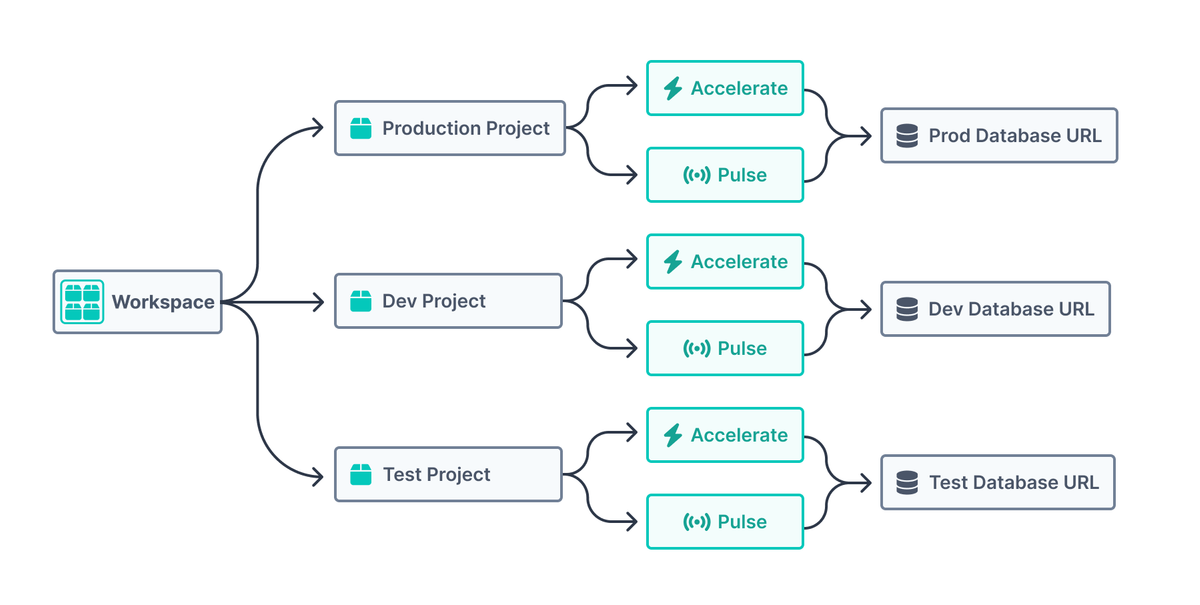
With Platform Environments, you can now create multiple environments within a single project, making it easier to manage various stages of your development lifecycle:
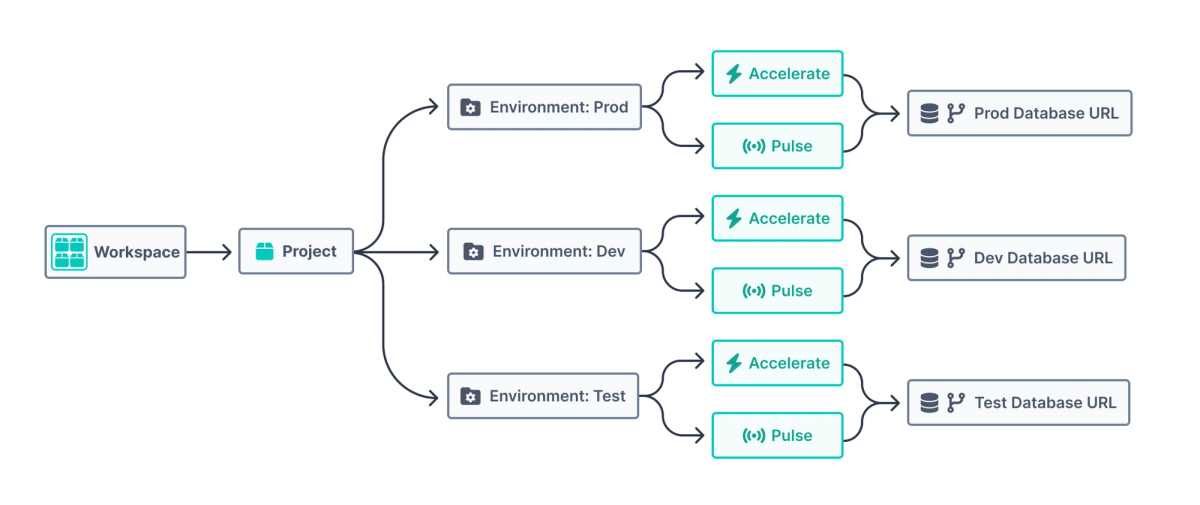
This not only saves you time but also allows you to get more out of your existing projects. See the gains across all our plans:
| Plan | Before Platform Environments | With Platform Environments |
|---|---|---|
| Starter | 5 projects | 5 projects, 2 environments per project |
| Pro | 10 projects | 10 projects, 6 environments per project |
| Business | 15 projects | 15 projects, 12 environments per project |
| Enterprise | Custom | Custom |
For more information on pricing, visit our pricing page.
Streamlining management of Prisma Data Platform projects from Prisma CLI ( Early Access )
We're also excited to announce that the Prisma Data Platform is now accessible through the Prisma CLI, available in Early Access, offering programmatic access for streamlined management of platform resources and improved workflow efficiency.
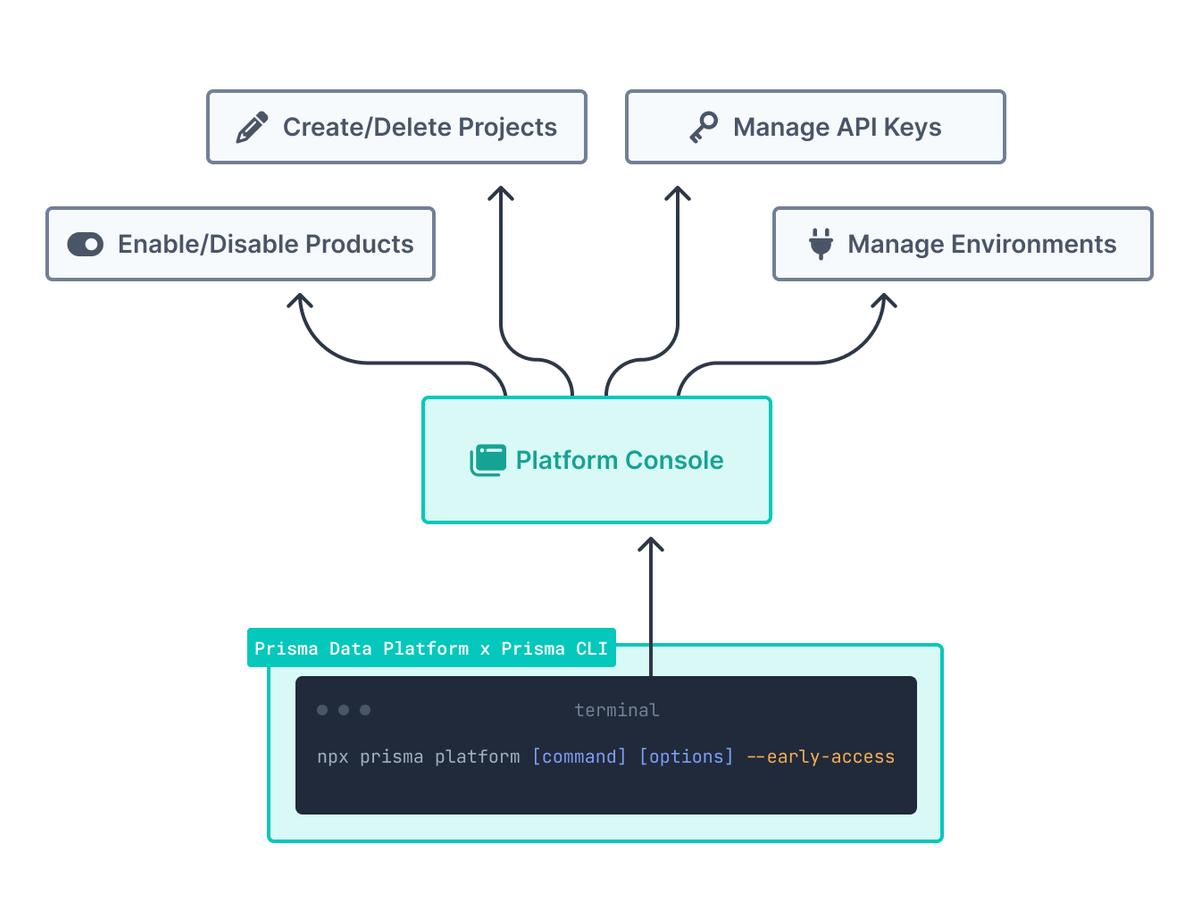
You can leverage the Prisma CLI to manage your databases for Prisma Accelerate and Prisma Postgres. e.g. This works really well with workflows using branch-based databases.
What is Database branching? Database branching lets you quickly create independent copies of your database for testing, development, data recovery, and other scenarios.
Some popular database providers that allow you to add database branching in your workflows are PlanetScale, Neon, and Railway:
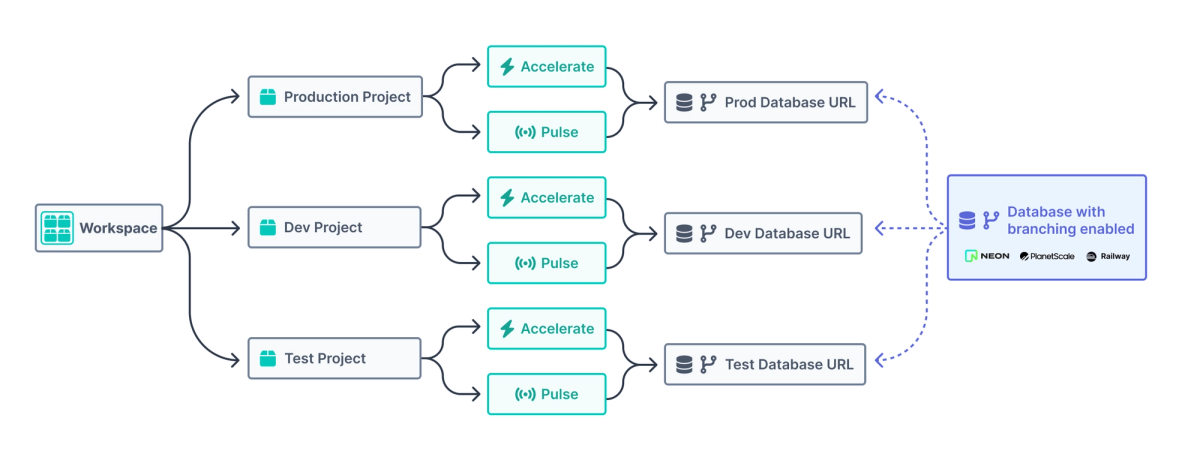
Now let’s look at a simple example below.
Enabling Prisma Accelerate for an environment using Prisma CLI
Let’s say you’re exploring caching to speed up your queries with Prisma Accelerate on a fresh feature branch. You want to ensure everything runs smoothly before rolling it out to production.
Let's explore how to activate Prisma Accelerate for an Environment and tidy up resources effortlessly, all using the Prisma CLI.
Pre-requisites
Before diving in, ensure that you’ve installed the Prisma Accelerate client extension on the feature branch and meet all the pre-requisites for using Prisma Accelerate. You also need to have Prisma CLI version 5.10.0 or later installed.
You should also have a .env containing the DATABASE_URL :
DATABASE_URL="postgresql://janedoe:mypassword@localhost:5432/mydb?schema=sample"Access Prisma Data Platform
Let’s get started by authenticating into the Platform Console:
npx prisma platform auth login --early-accessNote: The
--early-accessflag is essential until the feature is generally available.
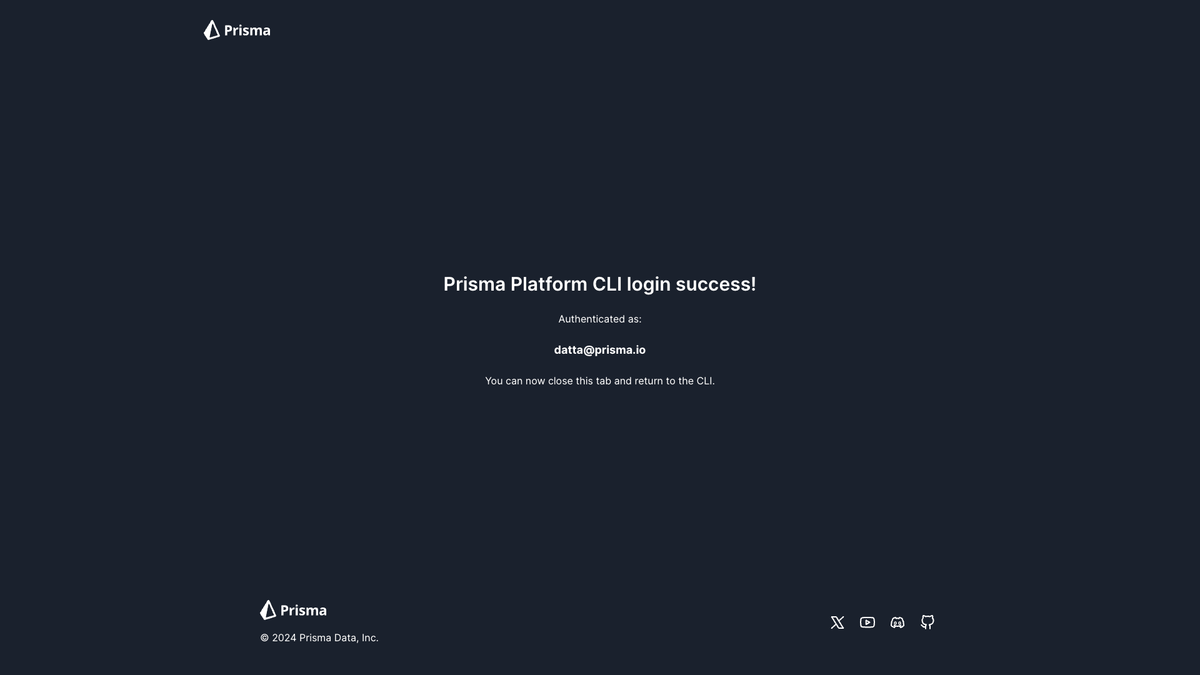
A browser window should pop-up prompting you to log in or create an account. Once authenticated, you will be instructed to head back to the CLI:
You can also check your login status by running:
npx prisma platform auth show --early-accessAnd the CLI should output:
## Output
Currently authenticated as datta@prisma.io

displayName : Ankur Datta
id          : clsdsdsdn0hadsdsd8yc
email       : datta@prisma.io
Managing workspaces
With authentication complete, retrieve your workspace information:
npx prisma platform workspace show --early-accessYou will get a list of all your workspaces:
## Output
displayName : dev-adv-id
id          : $DEV_ADV_WORKSPACE_ID
createdAt   : 12/14/2023

displayName : test-workspace
id          : $TEST_WORKSPACE_ID
createdAt   : 2/23/2024
Let’s use the workspace id for test-workspace for the demo. Store the $TEST_WORKSPACE_ID for the next step.
Exploring projects
View all projects within a workspace:
npx prisma platform project show --workspace $TEST_WORKSPACE_ID --early-accessThe CLI will output the list of projects in the specified workspace ( test-workspace ):
displayName : Glistening Purple Foal
id          : $PROJECT_ID_1
createdAt   : 1/26/2024

displayName : Cuddly Azure Calf
id          : $PROJECT_ID_2
createdAt   : 2/6/2024

displayName : Energetic Rose Dinosaur
id          : $PROJECT_ID_3
createdAt   : 2/7/2024

displayName : Magical Ivory Pumpkin
id          : $PROJECT_ID_4
createdAt   : 2/9/2024

displayName : Gift shop
id          : $PROJECT_ID_5
createdAt   : 2/19/2024
Now let’s set up a temporary environment in the Gift shop project. Store the project id ($PROJECT_ID_5), as we’ll also need that when creating a new environment.
Creating environments
To create an environment to test Prisma Accelerate, run:
npx prisma platform environment create --project $PROJECT_ID_5 --name "TEST PRISMA ACCELERATE" --early-accessAnd we should have an output confirming the successfully creation of the environment:
Success! Environment TEST PRISMA ACCELERATE - $ENVIRONMENT_ID created.Then copy the $ENVIRONMENT_ID, and then enable Prisma Accelerate for the TEST PRISMA ACCELERATE environment:
npx prisma platform accelerate enable -e $ENVIRONMENT_ID --url $PASTE_DATABASE_BRANCH_URL --region $REGION --apikey yes --early-accessSetting the
apikeytoyesgenerates a new API key when Prisma Accelerate is enabled.
The output should provide us with a Prisma Accelerate connection string.
Success! Accelerate enabled. Use this Accelerate connection string to authenticate requests:

prisma://accelerate.prisma-data.net?api_key=$PRISMA_ACCELERATE_API_KEY

For more information, check out the Getting started guide here: https://pris.ly/d/accelerate-getting-started
Testing Prisma Accelerate
Update the .env file with the Prisma Accelerate connection string:
DATABASE_URL="prisma://accelerate.prisma-data.net/?api_key=__API_KEY__"And then run your project and it should be working as expected!
Cleaning up
Once testing is complete, let’s delete the TEST PRISMA ACCELERATE environment, as deleting the environment removes associated resources. To tidy up resources, all you have to do is run:
npx prisma platform environment delete -p $INSERT_PROJECT_ID_5 -n "TEST PRISMA ACCELERATE" --early-accessMission accomplished ✅!
You can see that it was a breeze creating a new environment, enabling Prisma Accelerate and also cleaning up the resources.
Explore and share your feedback!
To explore the comprehensive command list of the latest Prisma CLI integration, please refer to our documentation available here.
Integrate the enhanced Prisma CLI into your workflow and share your experience with us via a tweet, and if you encounter any challenges, don't hesitate to reach out in our Discord and let us know!
About the author
Ankur is a member of the Prisma team who works closely with the developer community, with hundreds of contributions across Prisma's open source repositories and a background that includes founding an ed-tech startup. He writes about TypeScript, Node.js, PostgreSQL, and modern application stacks.
Keep reading

Deploy Prisma Apps with create-prisma
create-prisma now scaffolds Compute-ready Prisma apps with prisma.compute.ts, compute:deploy, Prisma Postgres, and Prisma Skills add-ons.


Configure Prisma Compute deploys in TypeScript
Prisma Compute now reads a typed TypeScript config file, so deploys are reproducible and monorepos work: declare one app or several, then ship the whole system with one command.
Build your next app with Prisma
Start free. Scale when you’re ready.